If the v2cloud application opens but you can’t get past the login screen, please try the following
- Open dash.v2cloud.com on your browser to confirm the website works, if it doesn’t try a different browser or clear cookies of your current browser.
- To clear cookies you can follow these instructions For chrome: chrome://settings/clearBrowserData
For edge: edge://settings/clearBrowserData
- To clear cookies you can follow these instructions For chrome: chrome://settings/clearBrowserData
- If the website now successfully opens please try the application again, if it doesn’t work proceed to the following steps.
- Try to set your default browser to a different one, you can do so by searching for default applications in your search bar and then changing the web browser:
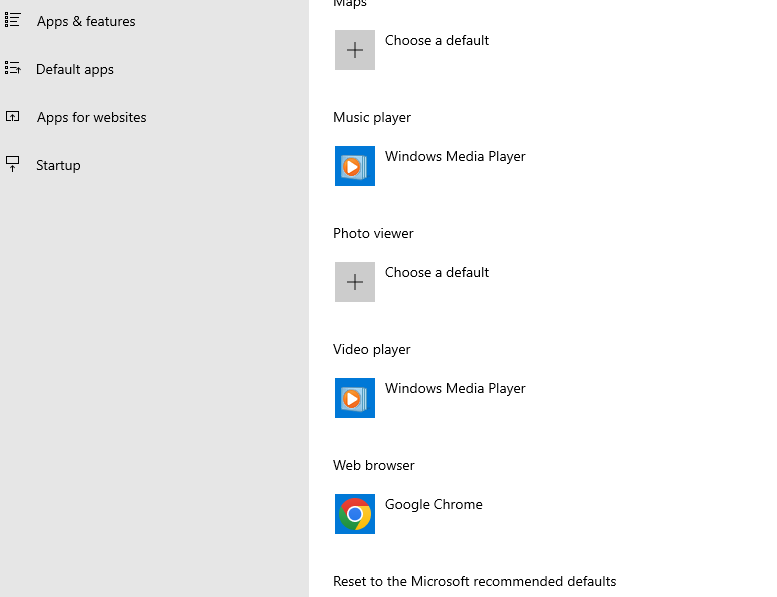
- If your startup applications looks different then the above picture click on apps and search for a different default browser.

- Then select “Set default”

- Then select “Set default”
- If your startup applications looks different then the above picture click on apps and search for a different default browser.
- Try to login again, if the same issue is still occurring please turn of your Anti-Virus (This will only be for 5 minutes to test)
- If you don’t have an Anti-Virus and just have windows please search for Windows defender firewall then select “Turn Windows Defender firewall on or off”
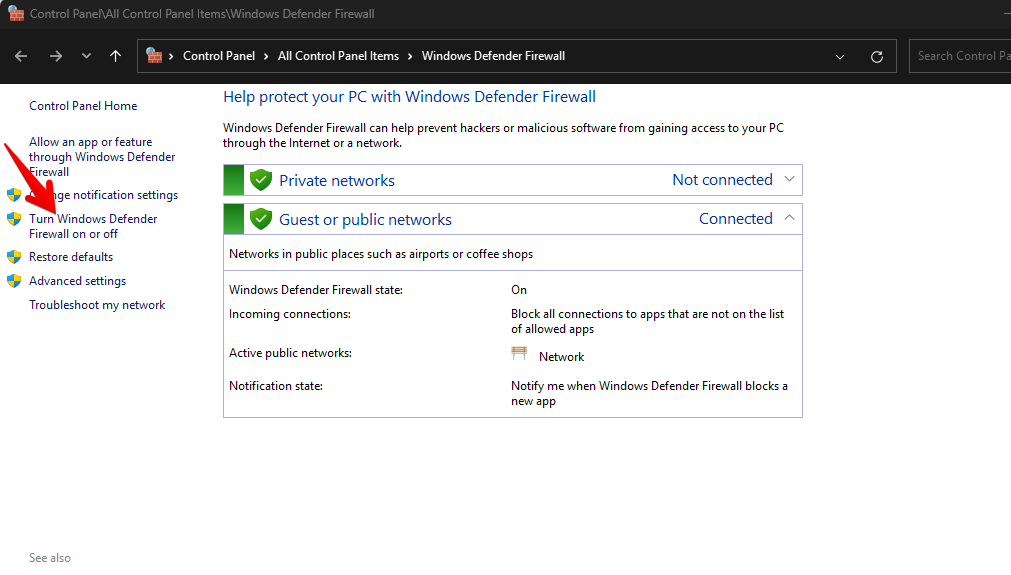
- Then select “Turn off windows defender firewall”
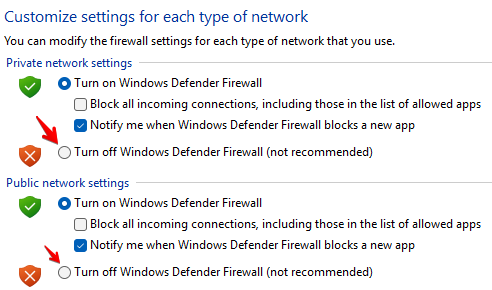
- Then select “Turn off windows defender firewall”
- Close the v2cloud app and try again.
- If you don’t have an Anti-Virus and just have windows please search for Windows defender firewall then select “Turn Windows Defender firewall on or off”
- If the issue is now solved it’s most likely due to the firewall blocking the v2cloud application.
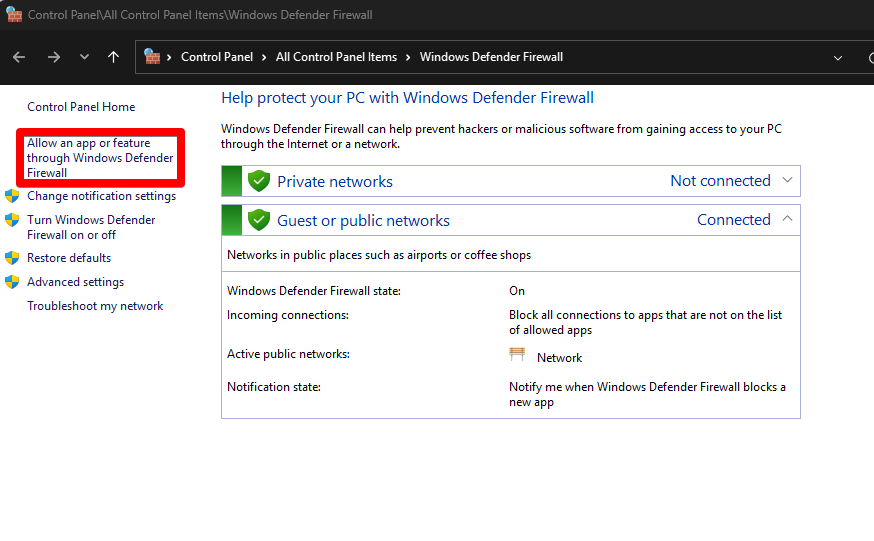
- To unblock you can head back to windows defender firewall as previously shown. But this time select “Allow an app or feature through Windows Defender Firewall”
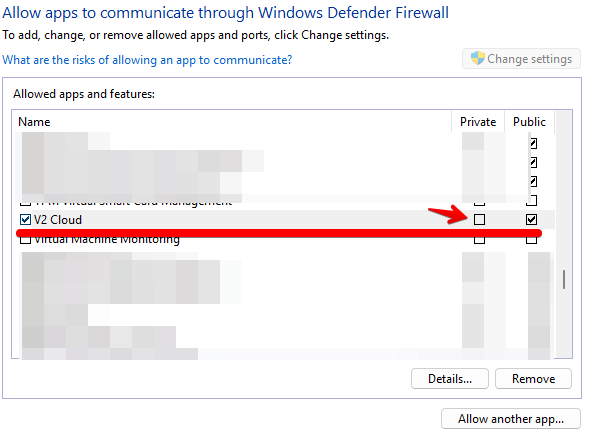
- Search for the V2cloud application and make sure both ticks are activated. (If you need to change settings click the change settings at the top right)
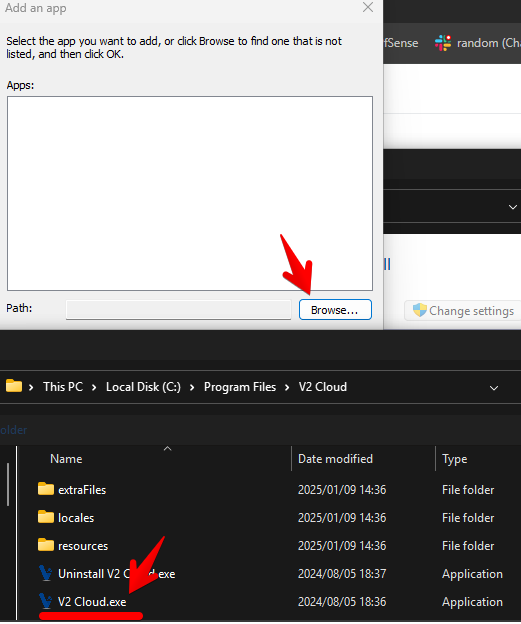
- If the v2cloud application is not there click on the allow another app…
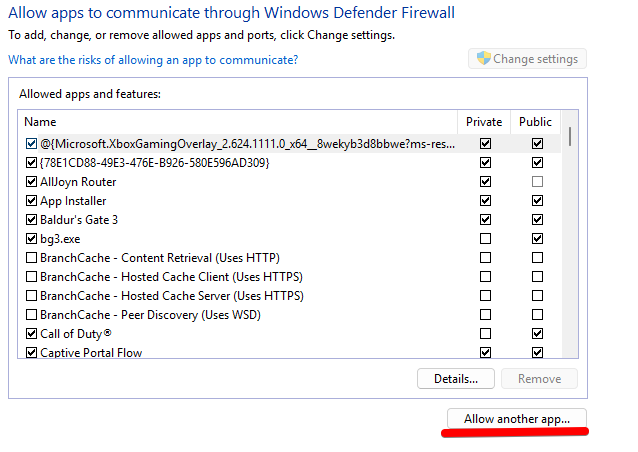
- Click on browser, and search for v2cloud.exe