
Here are the Steps to Restrict All Application Installations for Non-Admin Users
- Open gpedit on the search bar
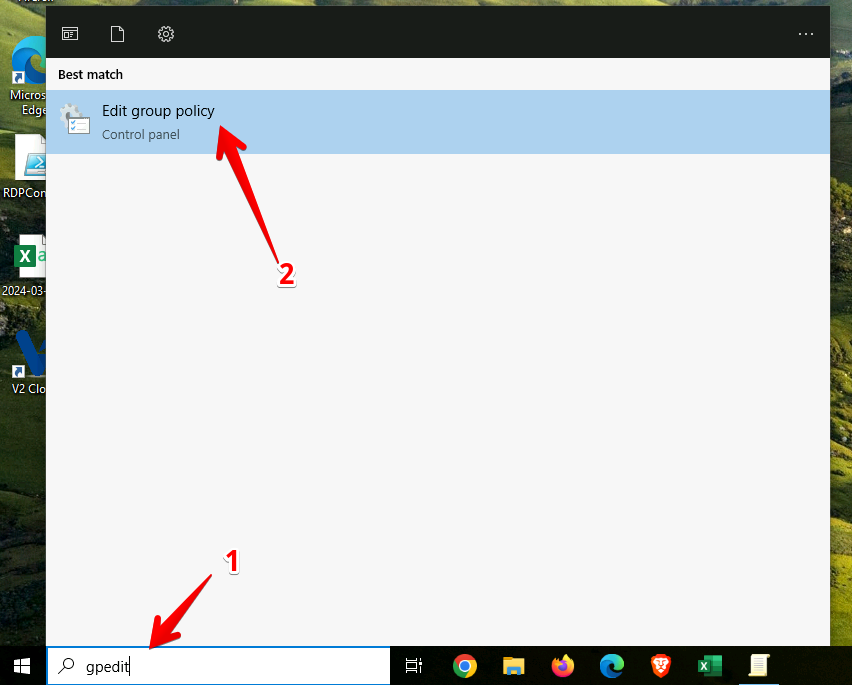
Go to Computer Configuration > Administrative Templates > Windows Components > Windows Installer
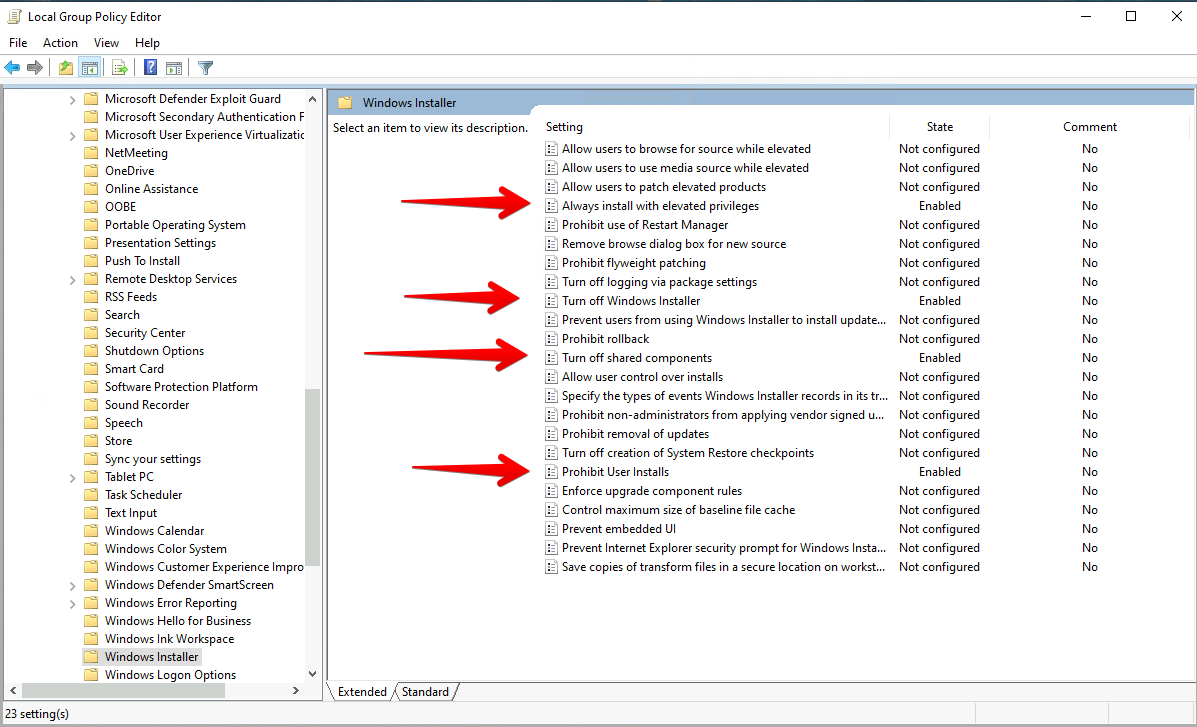
Make the following policies Enable. As in the picture.
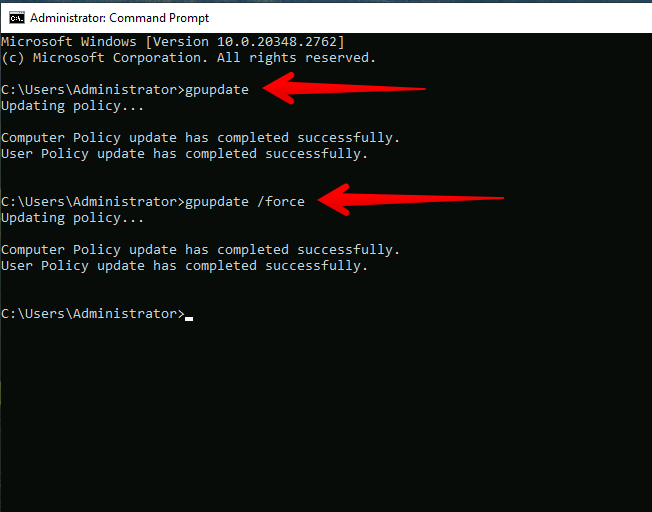
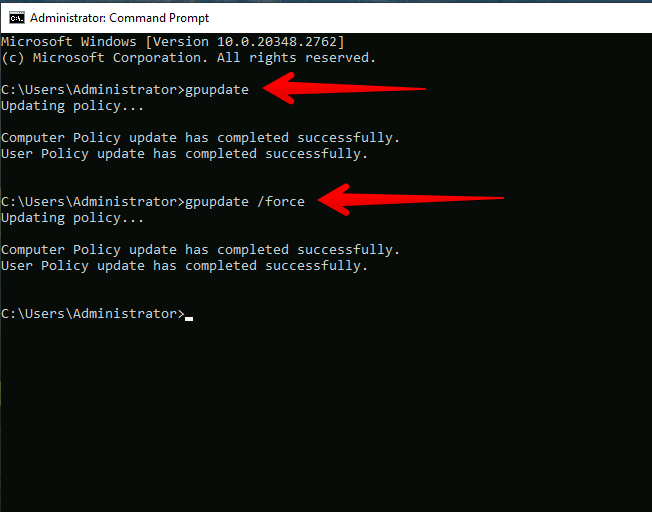
Update the policies after this
Start CMD
Now we open gpedit again
Go to Computer Configuration > Windows Settings > Security Settings > Software Restriction Policies
-Right-click Software Restriction Policies and choose New Software Restriction Policies if it hasn’t been set up yet
-Under Additional Rules, create Path Rules for directories where installation files commonly reside (e.g., C:\Users\%username%\Downloads, C:\Users\%username%\AppData\Local\Temp) and set them to Disallowed. This will block installation files from running from these locations.
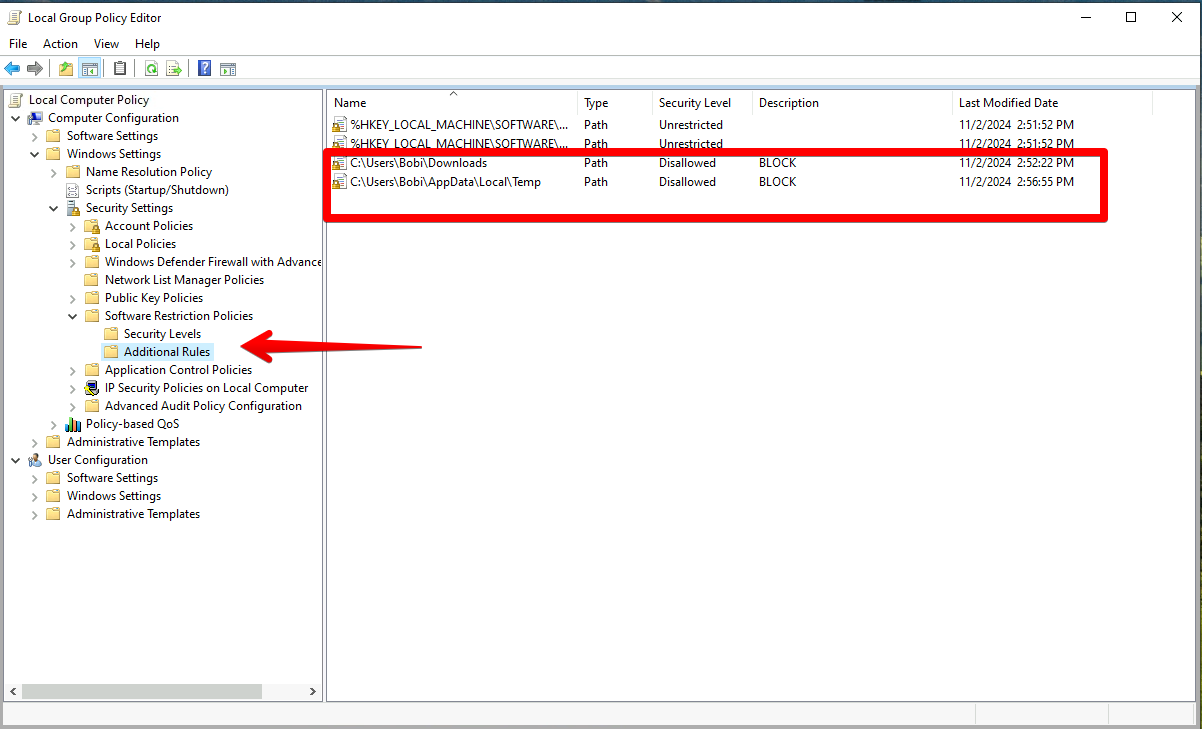
NOTE: These policies should be made separately for each user
Update the policies after this
Start CMD
Now I log into the user session and try to install a new program or software
-When I try, for example, I downloaded the Opera browser and tried to install it, I received the following message (I am sending you the attached image)
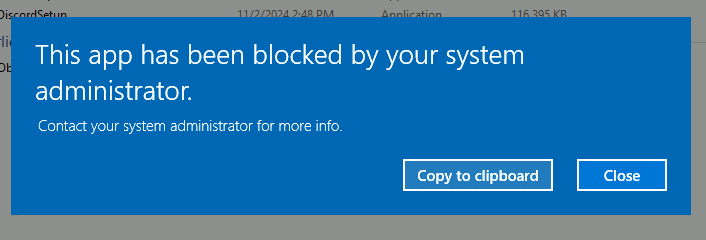
The policies have successfully blocked the user from installing new applications.