
The console view is a direct access to your VM if for any scenario your VM is not reachable. Even if the internet is turned off in your VM, you will be able to access it, reboot it and fix the network.
This will come in handy in case you reboot the computer and it’s taking longer to be accessible again, from the console view you can check what’s causing the delay. In case a 3rd party VPN or firewall is blocking your connection, you can also access from the console to disable it or adjust the settings.
STEP 1
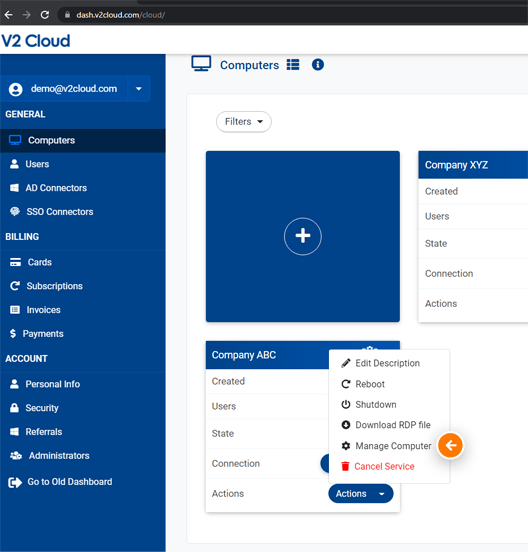
Log to your Dashboard and select Actions – Manage Computer on the VM you need access to.
STEP 2
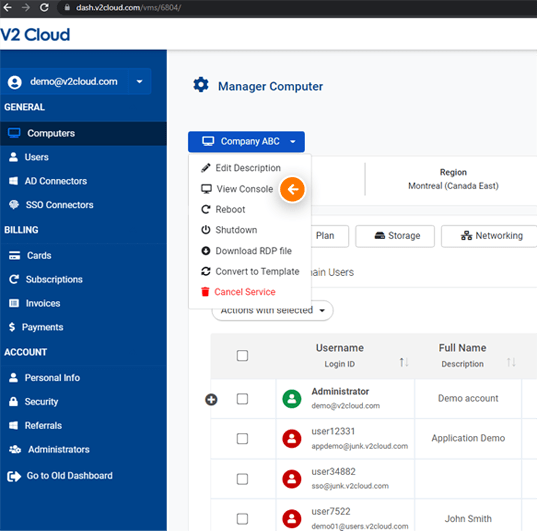
Click on your Virtual Machine name and select View Console.
STEP 3
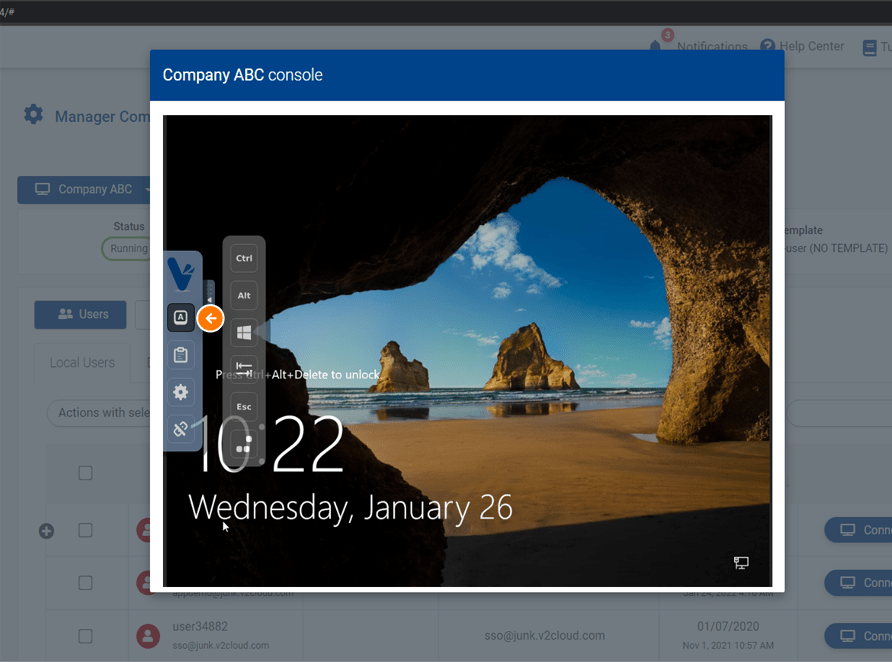
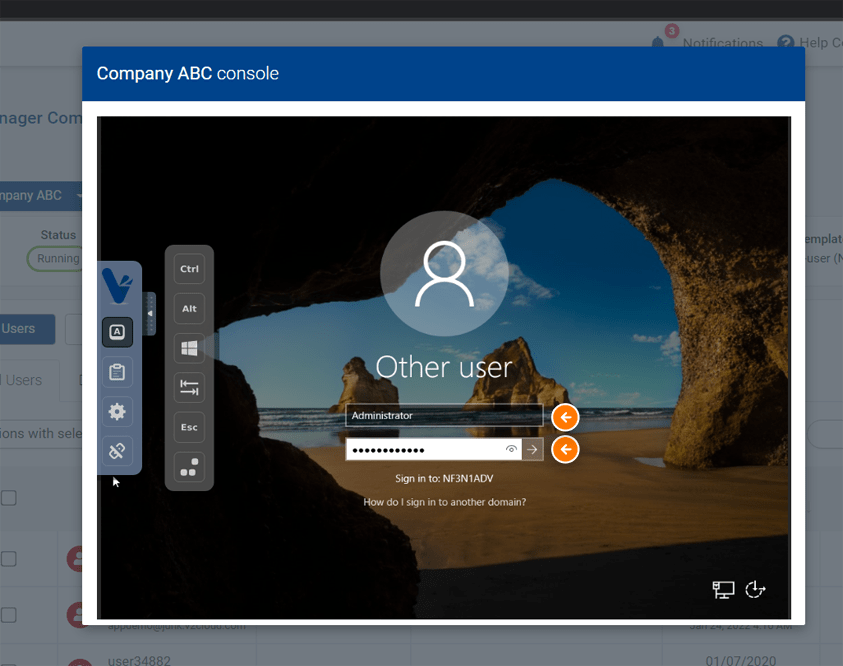
Click on the arrow on the left to show the control bar and then Show extra key. You can now select the button Send CTRL+ALT+DEL to unlock the Windows screen. The username is Administrator and the password is your Windows password. You can find/change your Windows password by following this tutorial.
You are done!
You now know how to use the Console View inside your Dashboard
Tags: console view, dashboard