
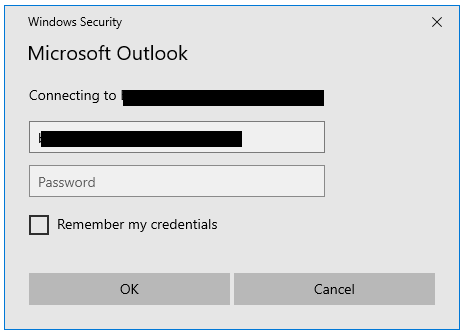
If your Outlook is continually prompting you for a password to sign in please follow these steps.
- Open the Regedit application as the user. (This should not be done as the administrator as it will apply the changes to your profile instead of the user’s settings.)
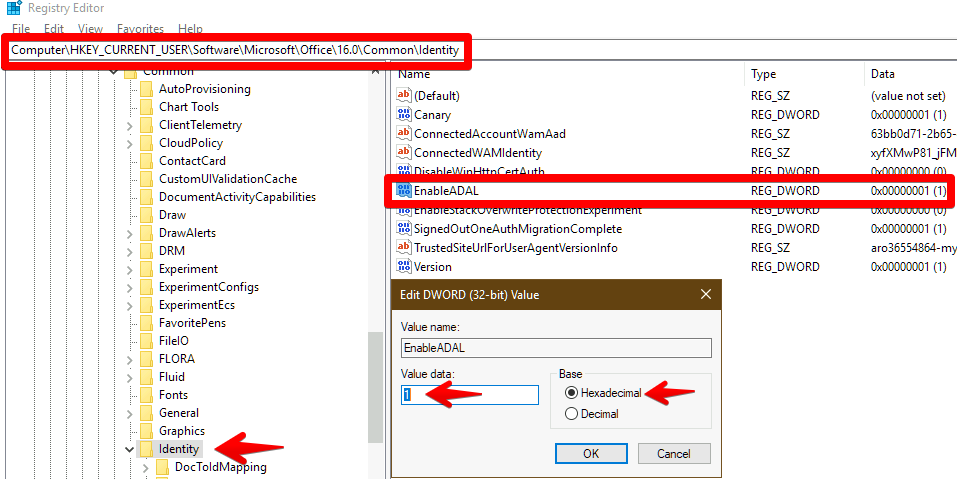
- Go to “Computer\HKEY_CURRENT_USER\Software\Microsoft\Office\16.0\Common\Identity”
- Verify if there is a DWORD value named “EnableADAL” that is set to 0. (If “EnableADAL” is not found in the registry, create a new DWORD and name it “EnableADAL”.)
- Update the DWORD value for “EnableADAL” to 1.
- Select OK.
- Verify if there is a DWORD value named “DisableADALatopWAMOverride” that is set to 1. If “DisableADALatopWAMOverride” is not found in the registry, create a new DWORD and name it “DisableADALatopWAMOverride”)
- Update the DWORD value for “DisableADALatopWAMOverride” to 0.
- Select OK.
- Close Regedit.
- Open Outlook and sign-in.
The DWORDs should look like the below screenshot, where EnableADAL’s Value data is set to 1 and DisableADALatopWAMOverride is set to 0
Keywords: Outlook Sign in, Outlook Password Loop.