
To use camera redirection, you will need to use the V2 Cloud Desktop Application. You can
download it here: https://v2cloud.com/download
After you have downloaded and installed the program, you can open it and log into your V2
Account, then proceed with the following steps to ensure camera redirection is active:
Please connect with the V2 app to your Cloud desktop.
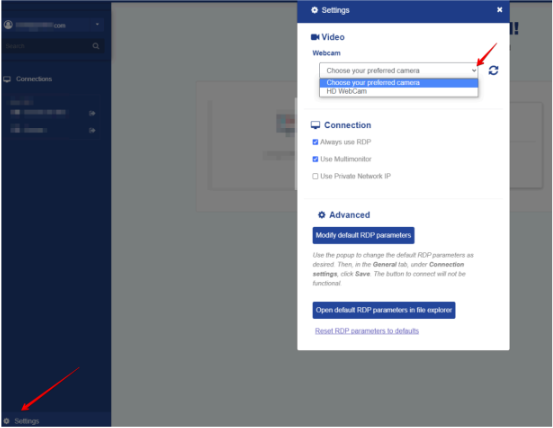
When you open the V2 app, please follow these steps like in the picture below in order to
choose your camera.
Also, you can check this option too, before you press connect:
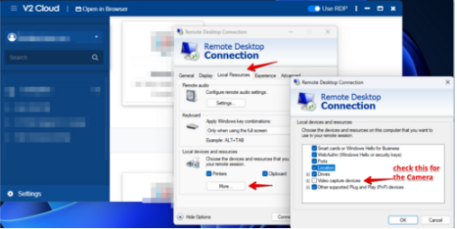
If the Remote Desktop Connection window doesn’t popup, confirm if the OS is Windows 11
Home, as it doesn’t have Windows RDP Client.
.
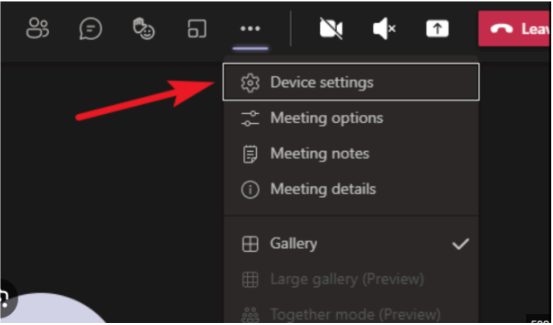
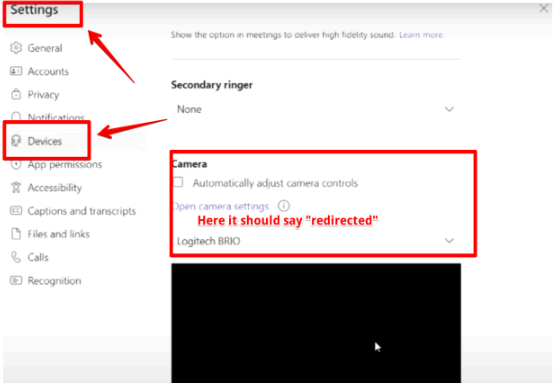
To check the camera redirection go to the settings of the app you want to use the camera on
and select the redirected camera.
For example in MS Teams:
Try a test call or videoconference to confirm the camera is working.
If issues are still encountered, make sure no other app is actively using your camera in your
local computer. Close anything that may be using the camera. Sign out from your cloud
computer, close the app and try once again.
If your camera is still not working after this, disable any feature your antivirus or firewall may
have that could block the camera redirection.
Contact us at support@v2cloud.com and we’ll assist you.
Related to